Change BG photo online Any background, one tap away.
Drop a photo, pick a colour, a new scene or a soft blur, and download it.
or drop it here · paste with Ctrl+V
Free · No sign-up · Photos stay on your device
Works with JPG, PNG, WebP, HEIC from an iPhone, GIF and BMP.
Open a photograph, let the page work out where the subject ends, and put something else behind it — document white for a form, any colour you pick, a studio ground, or a blur of the room that is already there. The saved file is measured before you upload it.
One photo, a new background every time
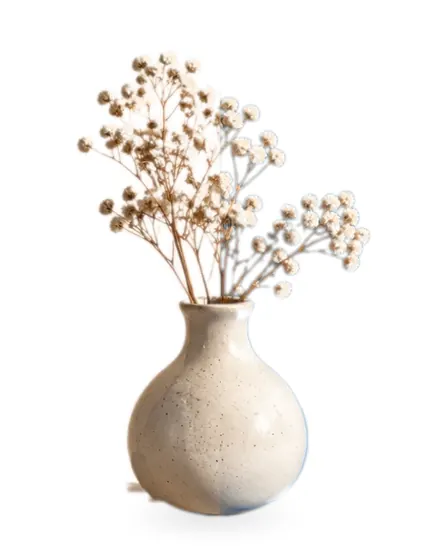
All made right here from the same picture of a vase.
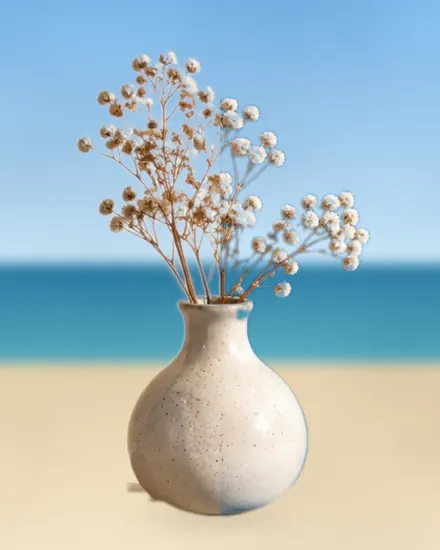
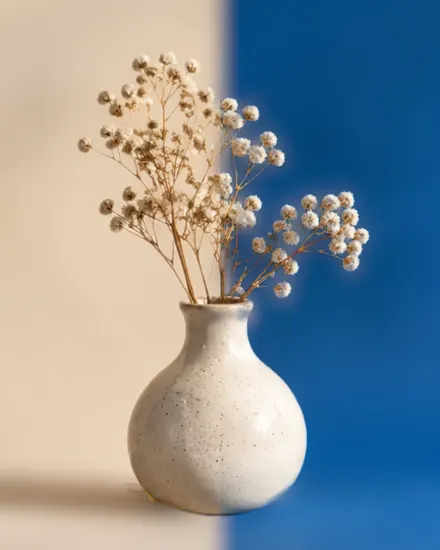

From photo to new background
Drop your photo
Choose a picture, drag it in or paste it. The subject is found for you.
Tap a background
White, any colour, a studio sweep, a new scene or a soft blur.
Download
Save a JPG, PNG or WebP at full size, or the size your form asks for.
What is your photo for?
Every one of these opens the tool already set up for the job.
- White backgroundPlain white for forms, passports and shops.
- Passport photo backgroundThe exact ground each passport office asks for.
- Blue backgroundThe light blue ID cards and forms want.
- ID photo backgroundPick your form; colour and size follow.
- Blur backgroundKeep the place, soften the clutter.
- Background colour changerAny colour, any code, or one from the photo.
- Studio backgroundsSmooth studio sweeps, tried on your photo.
- Background imagesForty-eight ready-made scenes and textures.
- Your own backdropUse any picture of yours as the new scene.
- Transparent backgroundA clean PNG with nothing behind it.
- Add background to PNGFill in behind a cut-out you already have.
- AI background changerOptional on-device AI for hair and products.
- Product photo backgroundSquare, centred, marketplace white.
- Profile picture backgroundA bright ground and a round crop.
- Signature backgroundA crisp signature on clean white.
- Batch background changerA whole folder at once, saved as a ZIP.
- Green screen removerKey out green or blue, add anything.
- Add shadow to photoA soft shadow that sits the subject down.

Something else? Change photo background with every option open.
Why a white wall is not white enough
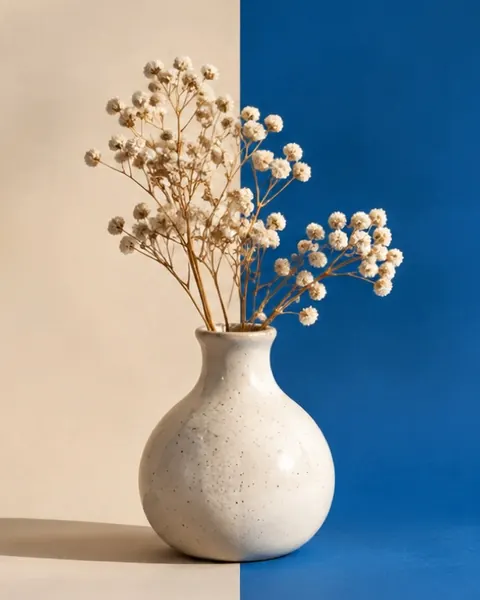
The room, as photographed
A white wall under a ceiling light is not white. It lands somewhere in the low 200s with a gradient across it and a cast from the lamp.
#FFFFFF — Document white
Written, not photographed: one value everywhere outside the edge band, which is what an automated upload check is measuring for.
#D7D7D7 — Listing mid grey
Or the room itself, softened behind the subject — which has no single value to state, and the tool says so rather than inventing one.
What this page does
A photograph of a person contains two things that have nothing to do with each other: the person, and whatever happened to be behind them. This page separates the two and gives you the second one back as a choice. The subject is left as photographed unless you ask otherwise — it can be moved and resized on a new canvas, and its brightness and warmth nudged toward the new light — and the ground it stands against becomes a flat colour you pick, a studio gradient, a photograph of your own, or a softened version of the room that was there.
The reason most people arrive is a form. Indian passport photographs are specified against plain white; state commission and university applications repeat the requirement; bank recruitment notices ask for a light background and usually name white. None of those bodies cares how you got there, only that the pixels behind the face are the value they asked for. That is a narrow, well-defined job, and this page does it rather than doing eleven adjacent ones badly.
The page opens on the way to the outline that costs nothing: colour and edges, worked out by arithmetic in a worker thread on your own machine. The Subject panel offers three Apache-2.0 licensed models beside it — a 6,163,938-byte portrait segmenter that runs in about 90 milliseconds, a 25,888,640-byte portrait matting model for hair and veils, and an 88,117,930-byte any-subject model for products and pets — each offered with its exact size on the button that fetches it, checked against its published SHA-256, cached afterwards so a second visit fetches nothing, and deletable from the same panel. Whichever you use, the outline feeds the same feather, the same edge unmixing and the same brushes, and the photograph itself never leaves this tab.
The working surface is laid out as the scene it builds: a stack of layers on the left — subject, its edge, its light, the shadow, the background and the canvas — the picture in the middle, and the settings for whichever layer is selected on the right. Split puts what you opened and what you are about to save in the same frame under a divider you drag; holding the space bar shows the original whole.
Steps
- Open the photographDrag it in, click the frame, or paste it — a screenshot from a video call is a perfectly ordinary input here. Orientation is settled from the file's own flag before anything else happens, so a photo taken sideways is upright before the selection is worked out rather than after.
- Look at the selection before the groundSwitch the view to Cutout to see the subject alone over a checkerboard, or press K or E to see the selection painted over the photograph in red. Red is what will be replaced. Most portraits against a plain wall need nothing at this stage; a busy room usually needs two or three strokes, or one of the models in the Subject panel, each of which states its download size before it fetches anything.
- Correct it with the brushesKeep paints back into the subject, erase takes something out of it. The square brackets change the brush size and shift plus a bracket changes how soft its edge is. Cmd-Z steps back through strokes and settings alike, and Shift-Cmd-Z puts them back.
- Choose the groundThe swatches are named for the job — document white for a passport or an exam form, portal off-white for the upload checks that reject a perfectly even white, listing mid grey for a product. Anything else goes in the value field. Studio grounds, a photograph of your own and a blur of the original room sit beside them.
- Re-ground and saveMatch the subject's light to the new ground, and add a contact shadow if the subject is standing on something; leave it off if they are not. Then pick the canvas — the photograph's own size or a listing, profile, feed, story or banner frame — and save as JPG, PNG or WebP. The file is written at the canvas' real dimensions, not at the size of the preview you were looking at.
Files it reads and files it writes
JPG, PNG, WebP, GIF, BMP and ICO are decoded by the browser itself; TIFF opens in Safari, which decodes it, and not in other browsers yet. HEIC — what a recent iPhone writes unless it has been told otherwise — needs a WebAssembly decoder that is fetched the first time one of them is opened, so nobody who never opens a HEIC pays for it. The models and the runtime that executes them are fetched on the same terms and no others: on request, with the figure shown first, and never otherwise. An animated GIF or WebP contributes its first frame. A file that already carries a real alpha channel is taken at its word: the selection it states is used, and the growth pass is skipped entirely.
Above roughly 32 megapixels — 16 on an iPhone or iPad, where the canvas ceiling is far lower and failing silently — you are offered a lighter working copy and told what size it will be. That is a question with two reasonable answers, not an error. Above 100 megapixels — 40 on an iPhone or iPad — the page declines and gives you the figure. Files stop at 120 MB.
Output is JPG or WebP with a quality control, or PNG. The readout on the Save button carries the format and the dimensions the file will have, and gains the byte count once you have saved one. With a kilobyte window switched on, the encoder searches quality until the file lands inside it, and the receipt reads the result back. With No ground switched on, PNG and WebP are written with an alpha channel instead of a ground. No camera or location metadata is carried across; a density in DPI is written only when you or the rule ask for one.
Two things this page cannot do
- Motion blur is not recoverable. Where an arm or a strand of hair moved during the exposure, the photograph does not contain an edge — it contains a gradient a dozen pixels wide in which subject and background are genuinely mixed, and no amount of selection can undo an average. Edge unmixing is switched off below fifteen per cent opacity for the same reason: dividing by a number that small amplifies sensor noise into coloured speckle. The honest result on a moving subject is a soft boundary that is slightly wrong, and that is what you get.
- Glass is a background you can see through, and this page treats it as subject. Spectacle lenses, a wine glass or a car window come out as solid shapes, because every pixel here gets a single opacity and the correct answer for a lens is two colours at once. The portrait matting model keeps a veil or loose hair partly transparent, which is the nearest this page gets. On a passport photograph this is usually invisible — the lens is small and the ground behind it is about to become flat white anyway. On a product shot of anything transparent it is the wrong tool.
What each format costs at this size
A photograph with a flat ground behind it compresses strangely, and the two formats fail in opposite directions. PNG keeps the ground exactly — a long run of identical pixels is the case its filters were built for — and keeps the subject expensively, so a twelve-megapixel portrait on document white usually lands somewhere between four and nine megabytes. JPEG keeps the subject cheaply and puts a faint ripple into the flat ground where it meets a shoulder, at roughly half a megabyte to a megabyte and a half for the same picture at the quality this page starts on.
For a form with a size cap, JPEG at a high quality is almost always the answer and the ripple is invisible at the size a reviewer looks at. For anything that will be opened and worked on again, PNG, because that ripple hardens a little every time a file is re-saved. The readout beside the button names the format and the dimensions before you commit to either, and gains the byte count once one file has been written.
Questions people ask
The portal rejected my photo for the background even though the wall behind me was white. Why?
Because a white wall is not white. Photograph a white wall under a ceiling light and the file comes back somewhere between 210 and 240 on each channel, with a gradient across it and usually a cast from whatever the lamp is. An automated check that measures the corners of your upload is looking for something much closer to 255 and much flatter than a room can give it. Opening the photo here and choosing the document white swatch replaces those pixels with the value itself, evenly, across the whole frame.
A different portal rejected the pure white one. What now?
Use the portal off-white beside it. A minority of upload checks treat a perfectly uniform 255 region as a sign of a blank or damaged file and refuse it, which is maddening precisely because the photograph is correct. A ground one or two steps below pure white reads as white to a human reviewer and carries enough variation to clear the check. Nothing else about the photograph changes.
Can I save just the person, with nothing behind them?
Yes. Turn on “No ground” under Canvas & export, or open the transparent background route, and the file is written as a PNG or WebP whose alpha channel carries the outline — edge unmixed and shiftable, previewed over a checkerboard. JPEG cannot hold transparency, so it is not offered for that.
Is there an automatic mode, or do I have to paint the selection myself?
There is, on every route here, and it is off until you ask for it. The Subject panel lists where the outline can come from: colour and edges, which is what the page opens on and needs no download, and three on-device models, each with its download size on the button — a quick portrait model (6,163,938 bytes, about 90 milliseconds), a portrait matting model that keeps hair and sheer fabric soft (25,888,640 bytes), and a larger any-subject model for products and pets (88,117,930 bytes, slow on a processor). Whichever you pick, the result lands in the same feather, the same edge unmixing and the same keep and erase brushes, so nothing about the rest of the page changes.
How do I know the saved file is right before I upload it?
Press Check before saving, or just save: the page encodes the file, decodes it again and measures it. The receipt beside Save gives the ground's median value and how even it is, what is left in a 3-pixel band outside the outline, the exact pixel size, the byte count, the density in the header and the format in the file's signature — each against the rule you picked, if you picked one. It also lists what it did not check, starting with the face.
There are two people in the frame. Which one does it keep?
Both. The selection is between subject and ground, not between one person and another, so anything the growth pass cannot reach from the edges of the frame stays. If you want only one of them, the erase brush takes the other out; there is no picker that will do it for you in this version.
Does the blur setting know what is near the camera and what is far?
It does not. Nothing here estimates depth. The blur is applied to everything the selection calls ground and to nothing it calls subject, so a hand held out toward the camera is part of the subject and stays sharp, while the wall a foot behind the shoulder is ground and softens completely. That is a mask, not a lens, and the difference shows most on anything the subject is holding.
Is the photograph sent anywhere to work out the selection?
No. Both selections run in this page, on your own machine, and there is no server behind this domain that could take a file even if something asked it to. The colour-guided pass is arithmetic in a worker thread and fetches nothing at all. A model is a file that comes down to you — from our model file server, once, only after you press the control that names its size, checked against a published SHA-256 and cached afterwards. The traffic goes one way. Your photograph is not part of it.
Elsewhere
Routes open this same surface with the commonest jobs already set up: one on the value a form means when it says white, one on the ground each authority names for a document photograph, with the wording it used printed beside it, one on the full colour picker, one on the ID-form rules with their pixel sizes and kilobyte windows, one on the twelve studio grounds for listings and profiles, and others for transparent cutouts, product listings, profile pictures, signatures, green screens, shadows, a backdrop library and whole folders at once.
The written pages go after what a control panel cannot explain — why a photograph taken against a white wall is refused by a checker that measures pixels, the four things that give a replaced ground away to somebody who cannot say what is wrong with it, and how much of an outline a photograph actually contains before a brush has to finish the job. They are indexed on one page.
- White backgroundOpens on document white, with the off-white escape hatch beside it.
- Passport photo backgroundWhat each authority asks for, and the ground that satisfies it.
- ID photo backgroundPick the form, and the ground, pixel size and kilobyte window follow — with a crop frame and a check on the saved file.
- Background colour changerAny colour behind the subject: a full picker, hex, RGB and OKLCH, and an eyedropper that reads your own photo.
- Studio backgroundsTwelve seamless studio grounds, previewed with your own subject and matched for light and shadow.
- Transparent backgroundThe subject saved with nothing behind it: PNG or WebP with real alpha, edge cleaned first.
- Batch background changerOne recipe across a folder, every file measured, a ZIP with the receipts.
- GuidesThree written pages: the form rules, the giveaways, and what an outline can hold.
- White background rules for Indian formsWhat plain white means across passport, commission and bank portals.
- Why a swapped background looks fakeFour giveaways, each with the control that fixes it.
- Hair, fur and glassesWhat an edge can and cannot be recovered from.
The image you open is read by this page and by nothing else — there is no server behind this domain that could receive it, the outline is worked out inside your own browser either by arithmetic or by an on-device model, and if you ask for a model it is the model that is downloaded to you rather than your photo being sent to it.